
💡This is the default and recommended starting point
The Search Assistant reads your description and translates it into search filters automatically — no manual setup needed.
Before you start
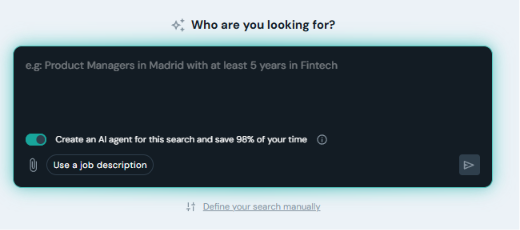
From the left sidebar, click Searches, then click (+) in the top-right corner. A chat-style prompt box will appear asking: "Who are you looking for?" By default, the search opens in Search with AI Assistant mode.
1. Describe what you need
In the prompt, write what you're looking for in plain language — just as you would explain it to a colleague.

The more specific you are, the better the results. Try to include:
- Role — the job title or function you're hiring for.
- Location — city, country, or region.
- Experience level — years of experience, seniority, or career stage.
- Key skills or industries — any specific expertise that matters for this role.
2. Or use a job description
If you already have a written job description, you don't need to write a prompt from scratch.
- Click "Use a job description" to paste it directly into the field.
- Or use the attachment icon to upload it as a PDF.
- The assistant will extract the relevant criteria from the document and set the filters automatically.
3. Run the search
Click the send button. The Search Assistant will automatically fill in the filters
💡You can refine at any time
From the results page, you can adjust filters, change the ranking criteria, or ask the assistant to narrow or expand the search — without starting over.
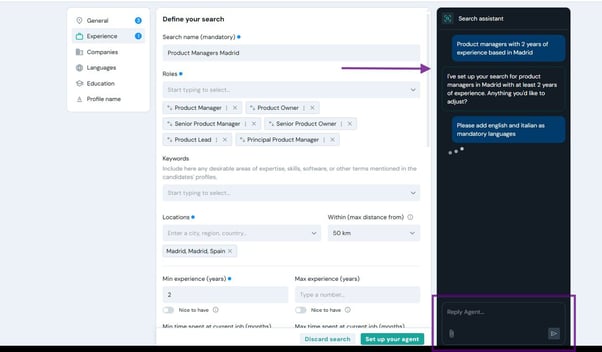
Filters available:
-
General:
Contains the core filters used to define your search. Here you can set the search name, target roles, required and preferred keywords, and location preferences.
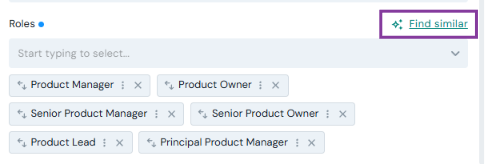
✨Use Find similar next to the Roles field to automatically expand your search with equivalent job titles. Since companies often use different titles for the same role, this helps you avoid missing relevant candidates.
💡 Fine-tune the filters yourself
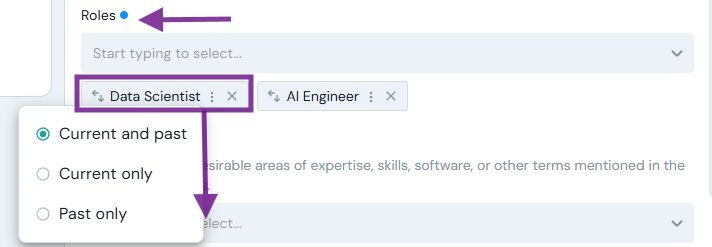
Once the assistant has set up your search, you can adjust any filter manually. Two options you'll find across the filter form:
Current Only
Limits results to candidates currently in that role — not just someone who held it in the past.
-
Keywords support Boolean logic for more precise searches:
- Must have – Required keywords.
- Nice to have – Preferred keywords.
- Use Keyword groups to combine terms with OR (e.g. Java OR Kotlin).
- Add multiple keyword groups to create AND conditions (e.g. (Java OR Kotlin) AND (AWS OR Azure)).
Experience
Let you define the candidate's experience by setting minimum and maximum years of experience, as well as the minimum and maximum time spent in their current role.
Turn on Nice to have to make a filter a preference instead of a requirement. Candidates who don't meet that criterion can still appear in your results, but those who do will be ranked higher.
💡This is useful when you want to keep your search broad without excluding potentially strong candidates.
Companies
helps you target candidates based on the type of companies they've worked for.
- Company industries – Filter by industry and expand each category to select specific subindustries for a more precise search.
- Business models – Target companies based on how they operate (e.g. B2B, B2C, Marketplace, SaaS).
- Company sizes – Filter by the number of employees.
- Company funding stages – Focus on companies at a specific growth stage, from startups to public companies.
- Companies – Include candidates who have worked at specific companies.
- Excluded companies – Exclude candidates with experience at selected companies.
Languages
Click Add language, select the language you want to include, then click on the language chip to configure it.
For each language, choose whether it's a Must have or Nice to have requirement, then select the minimum proficiency level, from Elementary proficiency and above to Native / bilingual proficiency. Candidates who meet or exceed the selected level will match the filter.
Education tab lets you filter candidates based on their academic background.
Set a minimum and/or maximum graduation year, and use Nice to have if graduation dates should be treated as a preference rather than a requirement.
You can also filter by:
- Fields of study – Select specific academic disciplines.
- Degree types – Filter by qualifications such as Bachelor's, Master's, or PhD.
- Educational institutions – Include candidates from specific universities or schools.
- Excluded institutions – Exclude candidates who studied at selected institutions.
Profile name: Search specif name