
💡When to use Manual Search
Is ideal when you have very specific criteria in mind, want to experiment with individual filters, or prefer to build your search step by step rather than describing it in words.
Before you start
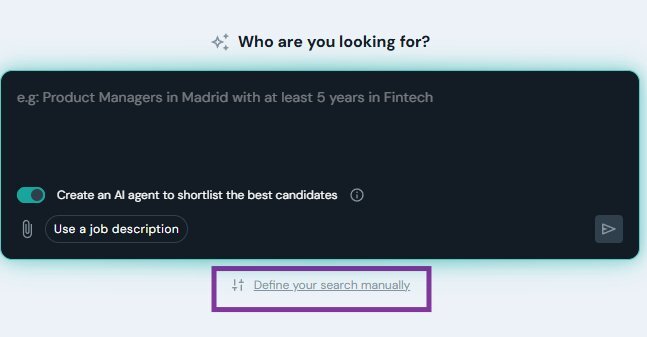
From the left sidebar, click Searches, then click (+) in the top-right corner. When the prompt appears, click "Define your search manually" to open the filter form.
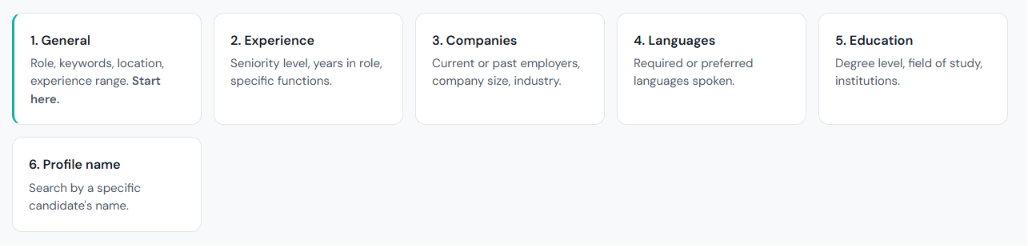
The six filter sections
The form is organized in six sections. You don't need to fill them all — start with General and go deeper as needed.
Two options you'll see throughout the form
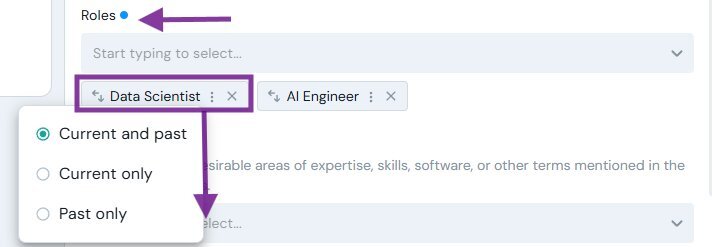
As you fill in the filters, you'll notice two toggles that appear across different sections:
Current Only
Limits to candidates currently in that role or with that skill
Use this when you need someone actively working in the position right now — not just someone who has done it in the past.
Nice to Have
Marks a criterion as preferred but not required
Candidates who meet it rank higher. Candidates who don't can still appear. Use this to surface the best matches without excluding good profiles.

Run the search
When you're ready, click "See matches" to run the search and view your results.
✨You don't need to fill everything in
Role, keywords, and location are usually enough to get strong first results. Current Only and Nice to Have are optional — add them later to refine if needed.